
Browser extension
Install CompGenies
CompGenies installs in one tap from the Chrome Web Store — on your computer, on iPhone with Orion, and on Android with Kiwi. No files to download, nothing to unzip.
On a phone, open this page inside Orion or Kiwi first — then tap the button above.
What it looks like in action
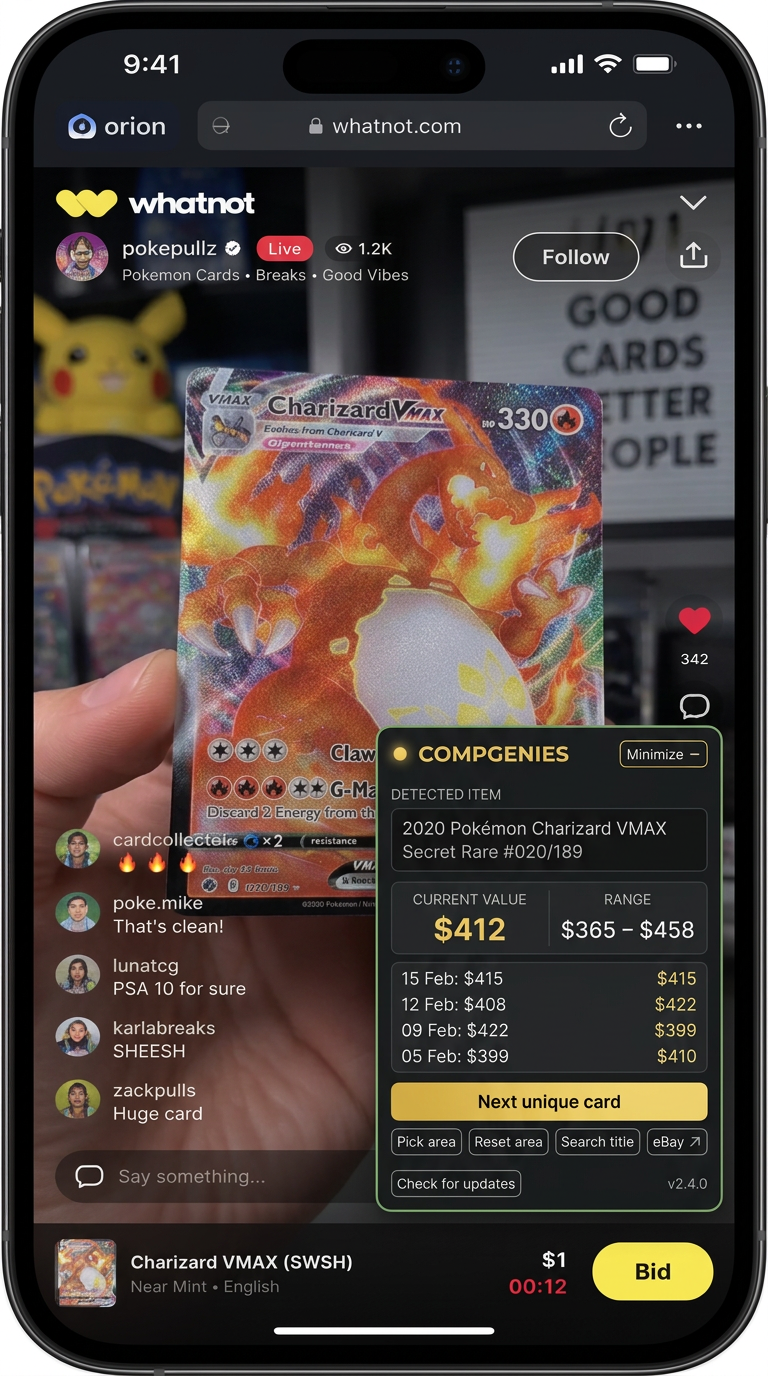
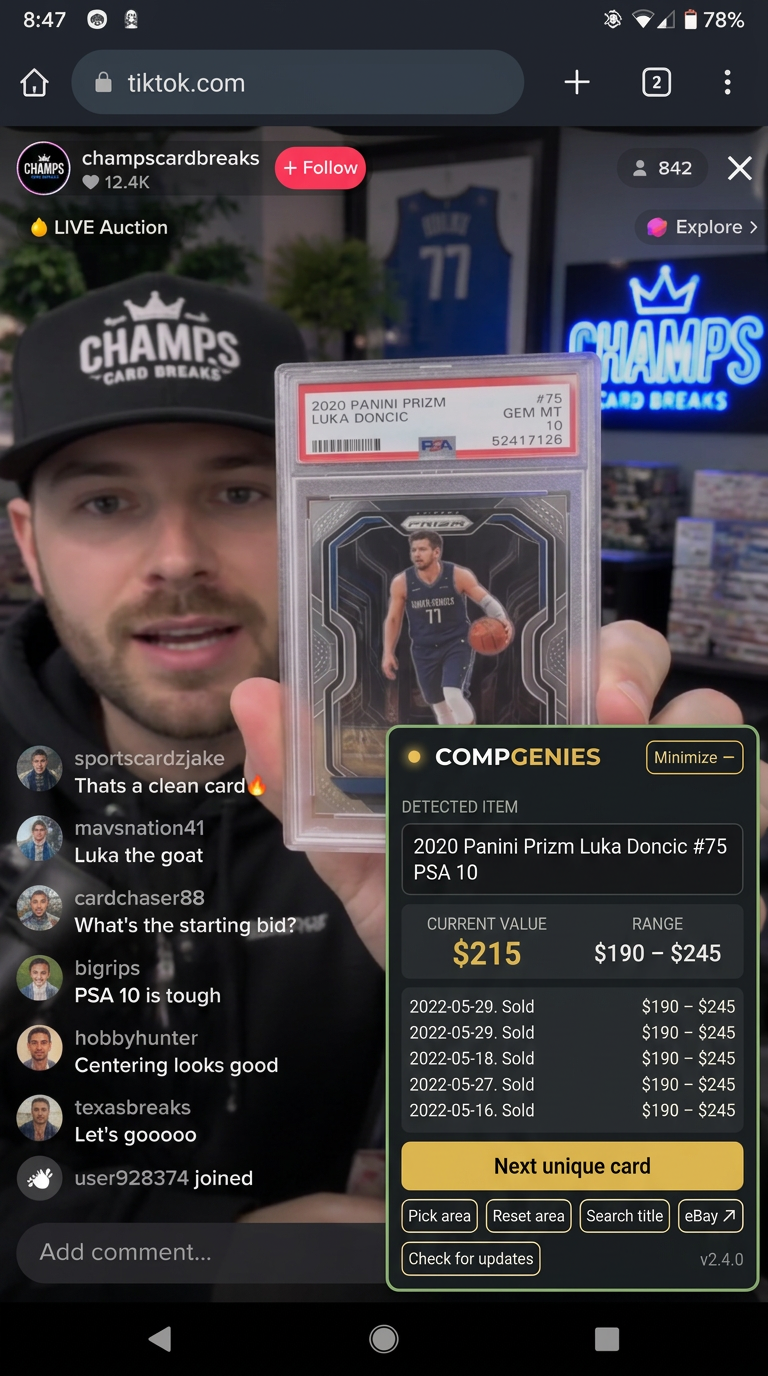
The CompGenies panel sits in the bottom corner of the live stream. Tap Next unique card and it reads the card on screen, then shows the real eBay sold price — without covering the auction.
On a computer
- 1
Click the button above — it opens the CompGenies page in the Chrome Web Store.
- 2
Click Add to Chrome, then Add extension when your browser asks.
- 3
Click the puzzle-piece icon in your toolbar and pin CompGenies so it's always one click away.
- 4
Open the CompGenies popup and sign in with your account so your plan applies.
- 5
Open a Whatnot, eBay Live, or TikTok Live stream — the price panel appears in the bottom corner.
Works in any Chromium browser — Chrome, Edge, Brave, Arc, Opera.
On iPhone — Orion Browser
Chrome on iPhone doesn't support extensions, but Orion Browser does — it installs Chrome extensions straight from the Chrome Web Store on iPhone and iPad.
- 1
Install Orion Browser from the App Store — it's free.
- 2
Open Orion, tap the ••• menu, then Settings → Extensions, and turn on Chrome Extensions.
- 3
Still inside Orion, tap the button below to open the CompGenies page in the Chrome Web Store.
- 4
Tap Add to Orion and confirm — it installs straight away, nothing to download or unzip.
- 5
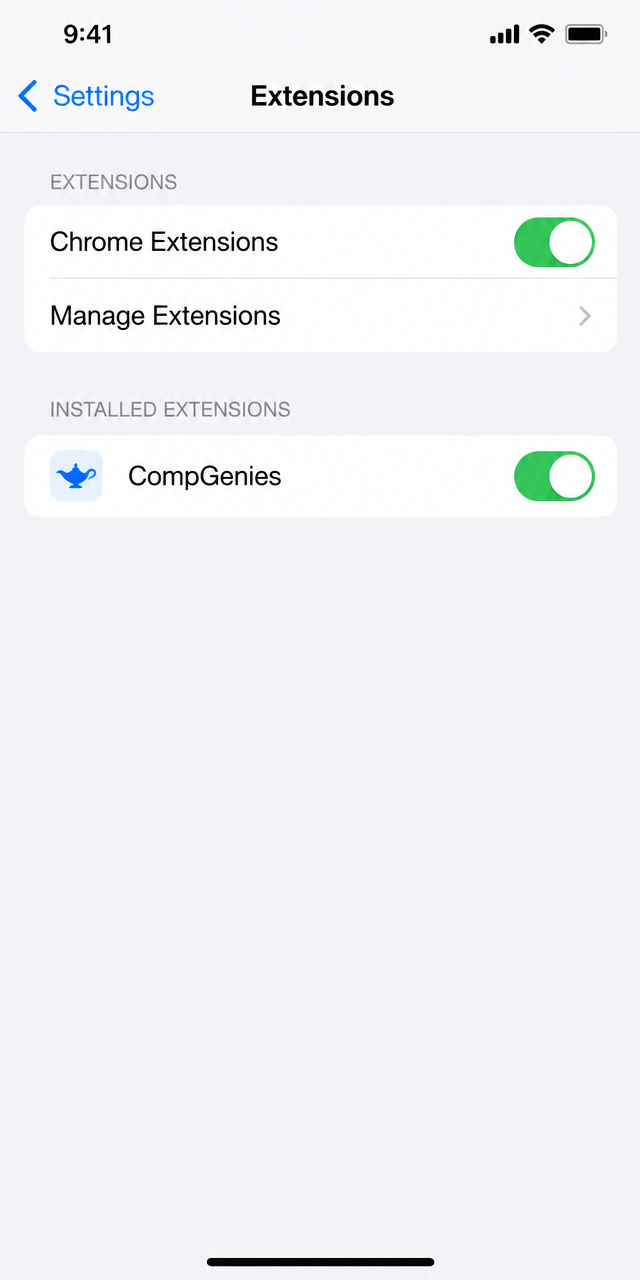
CompGenies now appears in Settings → Extensions with its toggle on (see the screenshot).
- 6
Open a Whatnot, eBay Live, or TikTok Live stream in Orion — the CompGenies panel appears in the corner of the video.
- 7
Tap the panel's genie icon to sign in with your CompGenies account so your plan limits apply.
Add CompGenies inside Orion
Open this button from inside Orion, then tap Add to Orion.
On Android — Kiwi Browser
Chrome on Android doesn't support extensions, but Kiwi Browser does — it installs Chrome extensions straight from the Chrome Web Store on any Android phone or tablet.
- 1
Install Kiwi Browser from the Google Play Store — it's free.
- 2
Open Kiwi and tap the button below to open the CompGenies page in the Chrome Web Store.
- 3
Tap Add to Chrome and confirm — it installs straight away, nothing to download or unzip.
- 4
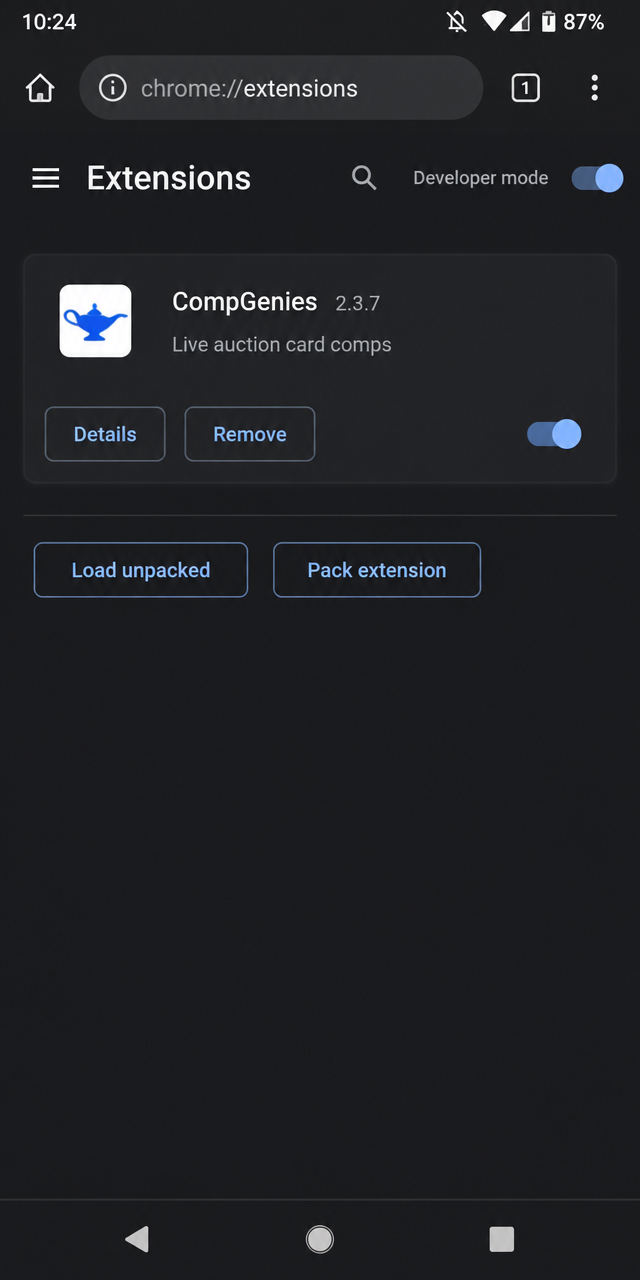
CompGenies appears on Kiwi's Extensions page with its toggle on (see the screenshot).
- 5
Open a Whatnot, eBay Live, or TikTok Live stream in Kiwi — the CompGenies panel appears in the corner of the video.
- 6
Tap the panel's genie icon to sign in with your CompGenies account so your plan limits apply.
Add CompGenies inside Kiwi
Open this button from inside Kiwi, then tap Add to Chrome.
Updates
Updates arrive automatically through the Chrome Web Store on your computer, in Orion, and in Kiwi — there's nothing for you to reinstall. Refresh any open stream tab afterwards.
Troubleshooting
- The panel doesn't appear on a stream
- Refresh the stream tab after installing — the panel only loads on a fresh page load. If it still doesn't show, confirm the address is on whatnot.com, ebay.com/lv, or tiktok.com.
- The card isn't detected
- Tap Next unique card on the panel. It reads the live video directly. Hold the card still and fully visible while it reads.
- I'm signed in but still see a limit
- Plans are decided on our server, not in the extension. Open the popup, sign out and back in to refresh your session, then scan again.
- The Add to Chrome button is greyed out
- On iPhone, turn on Chrome Extensions first in Orion's Settings → Extensions. On Android, make sure you're using Kiwi — regular Chrome on Android can't install extensions.
Extension privacy policy: https://compgenies.com/privacy